Sunday, February 26, 2012

Windows Desktop UI Concept

This guy is seriously awesome! I am not a big fan of fancy user interfaces but this is just pure brilliance!

I wouldn't mind using an interface like this at all!

Hope this at least comes as a shell replacement for Windows 8.

Desktopthumb_medium


Desktopthumb_medium

Check the article for more photos in the link below.

Windows Desktop UI Concept | The Verge Forums

Saturday, February 25, 2012

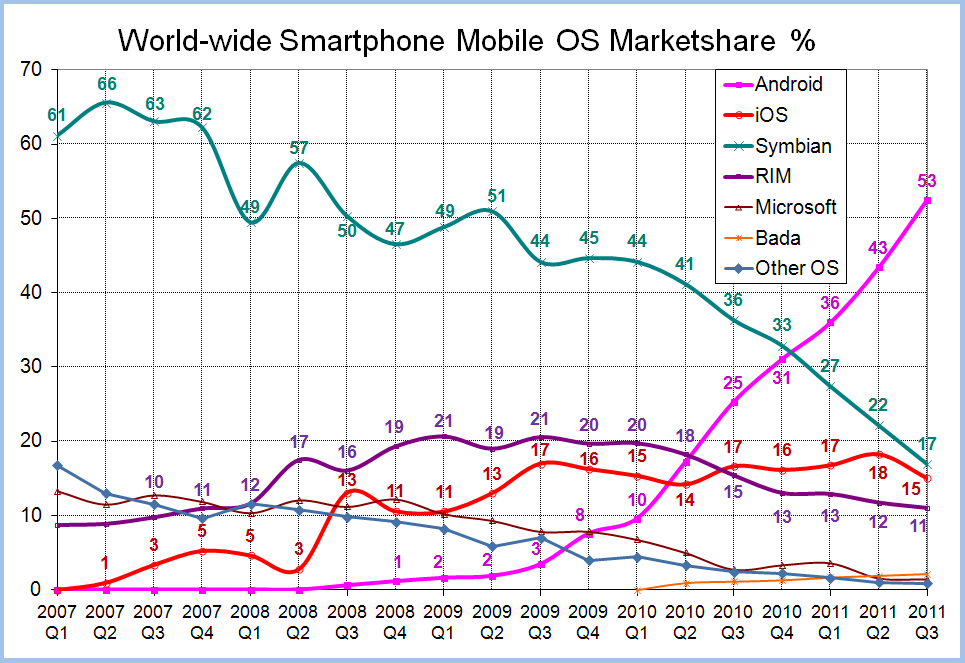
Interesting Statistics on Worldwide Smartphone Market Share

Came across this image when I was surfing and I am thrilled to see Android's steady and massive growth. A definite explanation to such growth is the fact that Android phones are manufactured by many companies (in contrast to iPhone only by Apple) and there are many low-budget devices running it.

iOS certainly doesn't seem to catch up and I am baffled as to why. Although it had some issues with the battery, iPhone 4S was a massive success (or so I heard).

I badly want Windows Phone 7 to catch up! Although I am an Android fan, the beauty and simplicity of Windows Phone 7's interface has got me hooked up. And according to GSMArena, we are going to see cheaper WP7 phones introduced at MWC this year at Barcelona. That is a good sign! Not everyone can spend an year's salary on a phone.


My Best Productivity Tools (One Note)


There are quite a few software that I use daily or once in a while to get things done in a more productive way or be productive. So I thought of listing down a few of my most used and trusted software. This is in no way a Top N Productivity Tools post or neither is a complete one. I’ll try to be concise and precise. Oh and by the way, I use an Android powered smart phone, so don’t be surprised to a see a few Android apps on the list. I’ll cover an app each in a post! Here goes the first!

  Microsoft OneNote
 
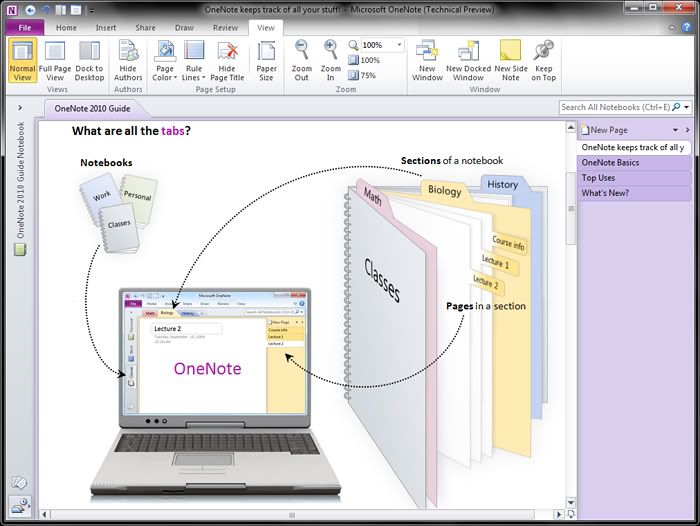
One Note is first, because it IS my number one productivity tool. I don’t know where I’d be without it. The companion Android application that was released recently is pure bliss.

Need something organized ? OneNote to the rescue! My office life would be a giant mess if it wasn’t for OneNote. I have everything from meeting notes, documents, task updates from team members to research documents, personal notes, brainstorming sessions and to do lists organized all thanks to the wonderful piece software from Redmond.

I tried Evernote and loved it because it could sync with my Android device but I didn’t fall in love with the tags concept or the number of hierarchical layers that it could divide my work in to.

In contrast, in OneNote, I have a notebook for each of my projects and I have a number of sub layers all neatly organized. I just love all those hierarchical organization capabilities! And automatic text recognition in the images is neat! It would suck to add all my office to-do lists in to my phone but One Note handles it like a boss! Adding a task is one click and automatically adds that task to Outlook too. It’s easier than having another to do list app.

Seriously, if you need everything organized in your life; office or home, OneNote is a gem! 
Now that OneNote syncs with my Android and integrates nicely with SkyDrive (you can edit OneNote documents in the browser!), my notes can be accessed where ever I have a browser and an Internet connection. 


P.S : NO, I am not a MS fan boy!

Await more productivity tools!


Sunday, July 10, 2011

ActionScript Regular Expression Tester/Visualizer

Here is an improved version of my older post. Given that I already had the index of each occurrence in my hand, why not visualize it ? I chose the RichText spark component to show the matches.

I wanted to make the font style to bold and change the color to red of each match. I first thought of looping through each occurrence and concatenating to produce the RichText. But it wasn't necessary at all. The replace function of string took in a RegEx and all was easy. The replace function not only took in RegEx but also had the functionality to include the matching string in the replacement string as a parameter. That's right! The parameter is $&. See the code below. Oh and I had to handle the new lines too.

var expression:RegExp = new RegExp(txtRegularExpression.text, "g");                        
                                                
var newLineExpression:RegExp = new RegExp("\\n", "g");
                        
var stringToShow:String = txtStringToMatch.text.replace(newLineExpression, "<br/>");
                        
stringToShow = stringToShow.replace(expression, "<b><font size='12' color='#FF0000'>$&</font></b>");
                        
richText.textFlow = TextConverter.importToFlow(stringToShow, TextConverter.TEXT_FIELD_HTML_FORMAT);

Saturday, July 9, 2011

ActionScript Regular Expression Tester

Here is a little tool I created using Adobe Flex to match a string against a regular expression. It tries to mimic the functionality of matches() function in .NET Regular Expression to return an array of matches. I have another idea to improve this, so I am back to work!

Here is matches function that I used. The application is after the code.

public static function getMatches(expression:RegExp, stringToMatch:String):Array
        {
            if (!expression.global)
            {
                throw new Error("expression.global is not true!");
            }
            
            var matches:Array = new Array();
            
            var allMatchesFound:Boolean = false;
            
            while (allMatchesFound == false)
            {
                var match:String = expression.exec(stringToMatch);
                
                if(match != null)
                {
                    matches.push(match);
                }
                else
                {
                    allMatchesFound = true;
                }
            }
            
            return matches;
        }


Friday, June 24, 2011

Commit using shortcut key in TortoiseSVN (Windows)

I always needed to automate committing in TortoiseSVN. Sure, it was not a very big deal to right click a folder/file and click commit but still how awesome would it be if I just use a shortcut key?

This led me to to this stackoverflow question which basically leads to this article. Cool! Just what I wanted!
Well, not quite. It does show that we should call TortoiseProc.exe with the required parameters, but acquiring the parameters (selected folder/file) in Windows Explorer is the tricky part. Not to mention, that it should happen when a shortcut key is pressed.

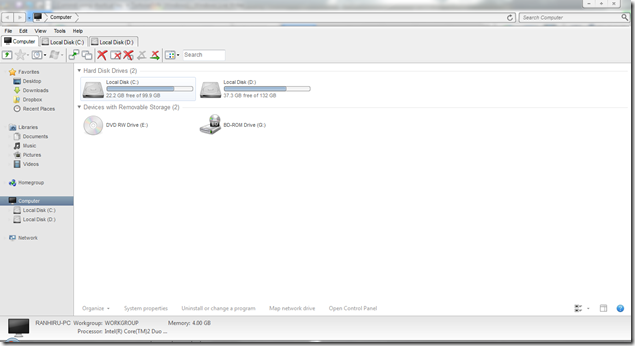
Well the whole process was surprisingly easy, thanks to QTTabBar. QTTabBar is one awesome piece of software which enables, tabbed browsing for Windows Explorer which is its major feature. Plus, it has a plethora of other goodies which makes Explorer down right lame.

Take a look at those lovely Tabs!
image

So the feature that we are going to use is "Applications".

Once QTTabBar is installed, right click on the bar, and select Options.


From Options, go to the Applications tab.

Then from there, select the + button to your top right (the one without the folder icon). Type a name "Commit"

From there, set the options as follows.

1. The path should be of course where you installed TortoiseSVN.
2. Leave the arguments as it is, unless you know what other arguments you need to pass in.
3. Assign a shortcut key and presto!

C:\Program Files\TortoiseSVN\bin\TortoiseProc.exe
/command:commit /path:%s%


Here is another shortcut I created for Update.

/command:update /path:%s%


This is just the beginning, you can do MUCH more than this using the article I specified earlier.

And the fun doesn't stop there... You can automate just about ANYTHING that accepts parameters, using shortcut keys now!

Happy Committing!

Saturday, May 21, 2011

Restore the IME in Windows 7


It wasn’t long time since I removed the IME (Language) bar in Windows 7 task bar just to conserve space. But now I want it back. I tried everything, right clicking on the task bar and I combed the properties but yet the efforts were fruitless and I was empty handed and mad! I removed it from the taskbar, let me get it back from the task bar! Not fair!

Enough rambling… The fix was pretty easy. Head to Control Panel and then to Region & Language, on to the 2nd tab which is Keyboards and Language

image

Then click “Change keyboards” button. Then to the 2nd tab of that, which what we finally wanted “Language Bar”. And there you go! Choose Docked in the taskbar, or floating on the desktop.

image